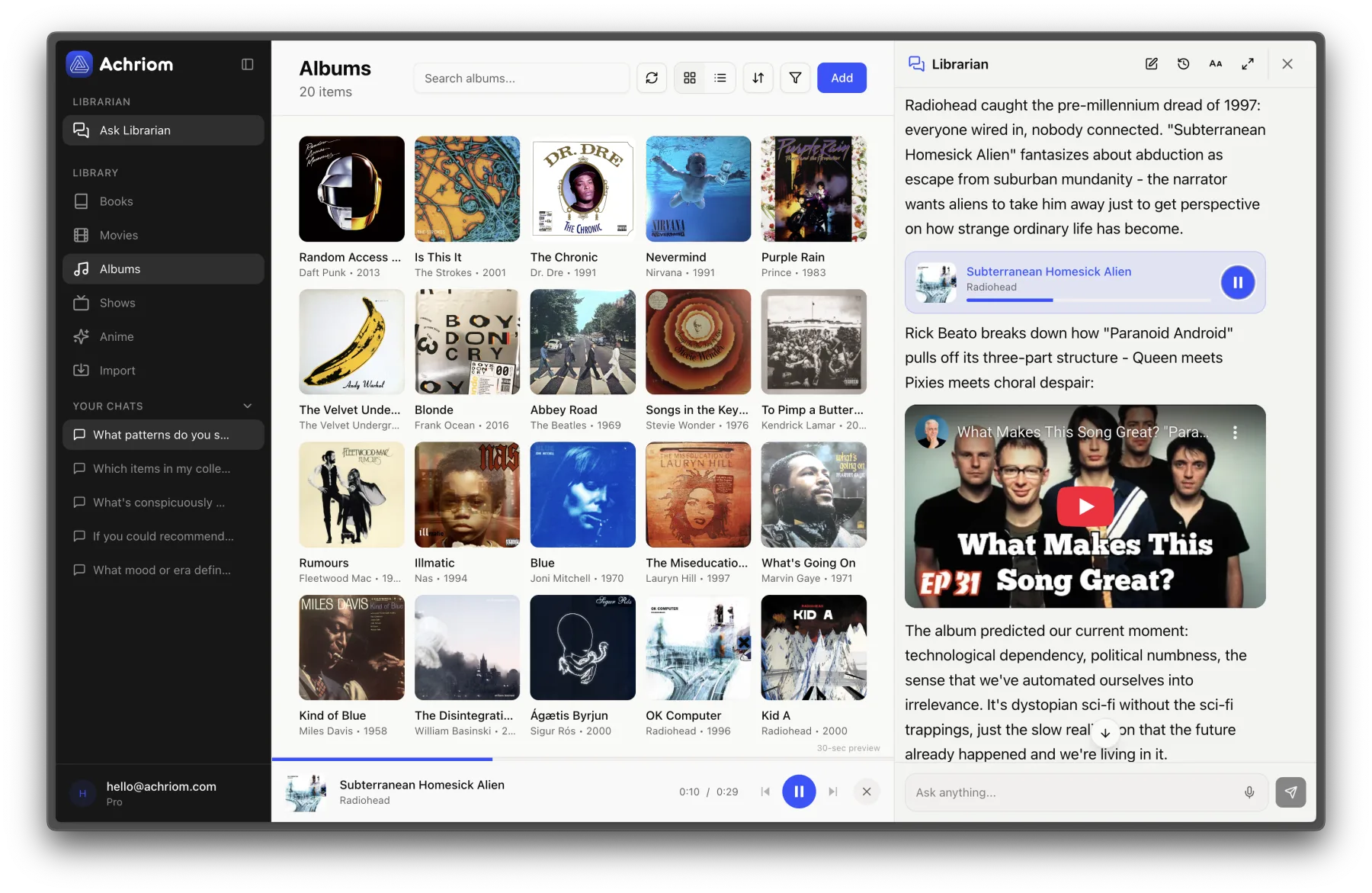
Want your albums on a shelf, not in an XML file? Achriom connects to Apple Music from its iPhone or iPad app and imports the albums you've saved. It's free, like every import.
Import my Apple Music albums →
_Last verified: November 1, 2026, against Apple's Music app guide, Apple's data and privacy pages and Achriom's import dialog._
---
## How to export from the Music app on a Mac
Apple's own Music guide gives these routes. Both live under **File > Library** in the menu bar.
**All your playlists**
1. Open the Music app.
2. Choose **File > Library > Export Library**.
3. Save the file. It comes out as XML.
**One playlist**
1. Pick the playlist in the sidebar.
2. Choose **File > Library > Export Playlist**.
3. In the **Format** menu, choose **XML**.
**A text file with every detail**
1. Pick the playlist in the sidebar.
2. Choose **File > Library > Export Playlist**.
3. In the **Save as type** menu, choose **Text files**. Apple says this writes everything in each song's Info window, including fields that have no visible column.
If you only want a quick list for a spreadsheet, there's a shortcut: click **Songs** in the sidebar, select the tracks, copy, and paste into another app. That copies only the columns you can see on screen.
## On an iPhone, iPad or Windows
The steps above are for the Mac Music app. I couldn't find an export command in Apple's Music guides for the iPhone or the web, so I'm not going to describe one. Apple's data request, covered below, is a web page you sign into, so it doesn't depend on having a Mac.
---
## What the export does and doesn't give you
| What you get | Detail |
|---|---|
| Format | XML for libraries and playlists, plain text for song details |
| Covers | Playlists and the information about the songs in them |
| Leaves out | The music itself. Apple says exports hold information about songs, not the songs or videos |
| Opens in | A text editor, a spreadsheet app (for the text version), or any tool that reads Apple's XML |
The XML is a snapshot, so it doesn't update itself, and you run the export again when your library changes.
Importing goes the other way too. Apple's guide says **File > Library > Import Playlist** reads an XML playlist you exported earlier, and it only adds songs already in that library.
---
## Ask Apple for a copy of your data
Apple also lets you request a copy of what it stores about your account at privacy.apple.com. Apple's page lists Apple Music among the services, under app usage information, and says that kind of data comes as spreadsheets or .json, .csv or .pdf files. Apple doesn't give a turnaround time. It notifies you when the file is ready and you then have 14 days to download it.
If you want your playlists in another streaming service, Apple's data and privacy page (support.apple.com/en-us/102283) lists transferring a copy of your data, including your Apple Music playlists, to another service. It doesn't name which services.
This is the route for a record of your Apple Music account activity. It isn't a quick way to get a clean album list, so the Music app export is where to start.
---
## Where to take your library
### Import your albums into Achriom
Achriom's Apple Music import reads the albums saved in your Apple Music library and puts them on your shelf. It brings the album title, artist, cover, release date, genres, label and track count, and a link back to the album in Apple Music.
It doesn't bring ratings, play counts or playlists. Apple Music's library albums are what comes across, so the albums arrive saved and unrated, and you rate them as you listen. Repeats are skipped, so running the import twice doesn't double anything. The import reads up to 2,000 albums.
The Apple Music step is built for the iPhone and iPad apps. Open Achriom there, go to Import, choose Apple Music and sign in with your Apple Account. If you open the import dialog on a desktop browser, it tells you to switch to your phone.
The export is the hard part. The import is a sign-in. Connect Apple Music and your saved albums come over.
Bring my albums over →
### Keep the XML as a backup
If you built playlists over years, an XML copy is cheap insurance. Save it next to your other backups and export again after a big stretch of adding music. The export holds playlist and song information only, so it's a record of what you had, not a copy of the music.
### Take your listening history elsewhere
The Music app export is a list of what's in your library, not a log of what you played. If you also keep a Last.fm history, [How to Export Your Last.fm Scrobbles](/blog/how-to-export-your-lastfm-scrobbles/) walks through that export, and [Last.fm alternatives](/blog/lastfm-alternatives/) covers where people go next.
---
## Common questions
### How do I export my Apple Music library?
Open the Music app on a Mac and choose File > Library > Export Library. Apple saves your playlists as an XML file. For one playlist, choose File > Library > Export Playlist and pick XML, or pick Text files for every detail of each song.
### Does the Apple Music export include the songs themselves?
No. Apple says exports hold information about the playlist or songs, not the songs or videos.
### Does Achriom import ratings or playlists from Apple Music?
No. Achriom imports the albums saved in your Apple Music library, without ratings, play counts or playlists, and the albums arrive saved and unrated so you rate them as you listen.
### Can I import Apple Music into Achriom from a computer?
The Apple Music step is built for the iPhone and iPad apps. Open Achriom there, go to Import, choose Apple Music and sign in with your Apple Account.