How to Export Your AniList Data (Anime and Manga Lists)
How to get your AniList anime and manga list out as a file. Covers AniList's own data download, community scripts, and Achriom's free CSV and MAL XML export.
Some links below are affiliate links. As an Amazon Associate, Achriom earns from qualifying purchases. For books we prefer Bookshop.org, which supports independent bookstores.
To get your AniList anime and manga list as a file you can open, the easiest route is to import it into Achriom by username and export it as a CSV or as MAL/AniList XML. AniList itself has an account data download, but it is a dump of your account rather than a list file, and community scripts can build CSV or MAL XML from the API if you don’t mind running code. Achriom’s export is free, with no item limit.
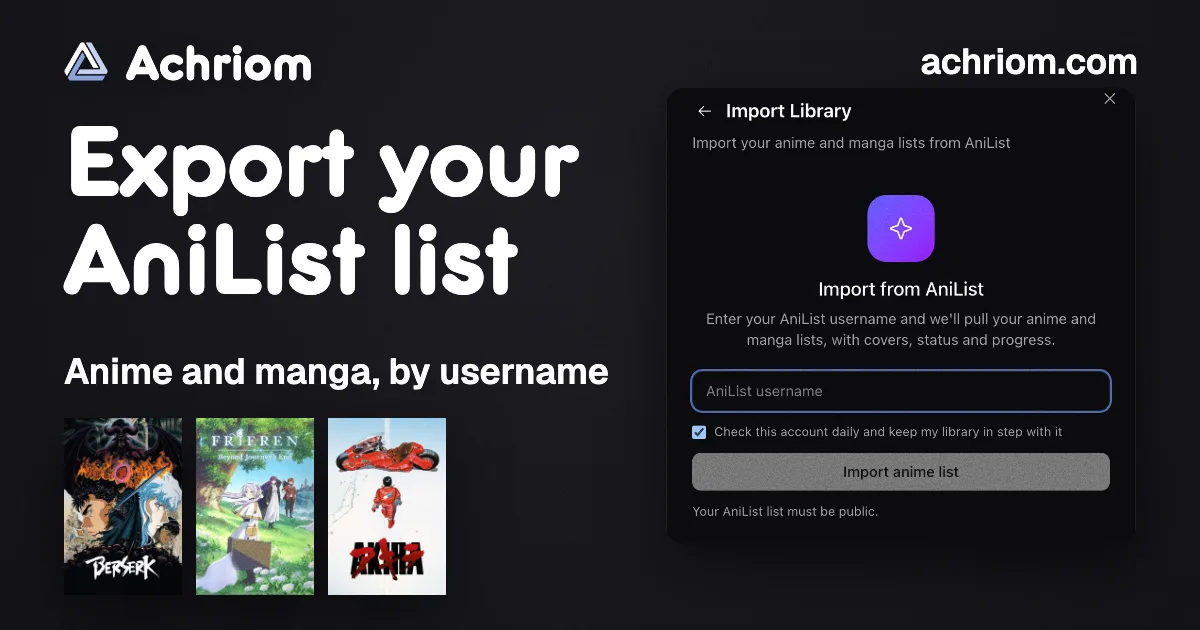
Your AniList username is all it needs. Make the list public, type the username, and your anime and manga come over.
Import my AniList →Last verified: October 31, 2026, against Achriom’s AniList import dialog and export settings. AniList’s own settings pages answered our checks with an error, so what we say about its data download comes from the README of a tool built on it, and the API claims come from AniList’s public API docs.
Does AniList have an export button?
Not for your list as a file, as far as we can tell. Reviewers on AlternativeTo say there is no list export. AniList does have an account data download as JSON, and its API can be read by script, but neither is a ready list file. We couldn’t open AniList’s settings ourselves, so this is the picture from outside. The data download is the one thing we can point to: a tool built on it, anilist-chart, tells you to take the “GDPR data download” from AniList’s account settings and feed it the resulting gdpr_data.json.
AniList’s own data download
The download is a legal-style copy of what AniList holds about your account, delivered as JSON. It works as a backup, but it isn’t laid out as a list. The anilist-chart tool has to query the API to turn what’s in the file into anime titles, which suggests the entries point at titles by internal ID. Open yours before you rely on it. If you can read your titles, scores and progress in it, you’re done. If you can’t, use one of the routes below.
The API and community scripts
AniList’s API repository says almost everything you can do on the site you can do through the GraphQL API, and a public list can be read by username without logging in. A few community projects wrap that into a file:
- AniPy is a Python script. Give it a username and it writes your anime and manga as JSON, plus MyAnimeList XML. A private list needs an AniList developer client ID and secret.
- AniList Exporter is a single HTML file you open in a browser. It fetches a public list and downloads CSV, JSON and MAL XML. Its README says scores are rounded to whole numbers in the XML and entries with no MyAnimeList ID are left out.
These are community projects, not AniList’s, so read what a script does before you run it. They are free, and they stop at the file. Nothing keeps your list in step afterwards.
The no-code route: Achriom
- Make sure your AniList list is public. Achriom’s import reads the public list and says so in the dialog: “Your AniList list must be public.”
- Sign in at achriom.com (free) and open the import dialog.
- Choose AniList, type your username and click Import anime list. It pulls your anime and manga lists with covers, status and progress. Scores come over too, converted from AniList’s scale.
- Leave “Check this account daily and keep my library in step with it” ticked if you’re still logging on AniList, or untick it for a one-off copy.
- Open Settings and use Export Library for the CSVs, or Export Anime for MAL / AniList for the XML.
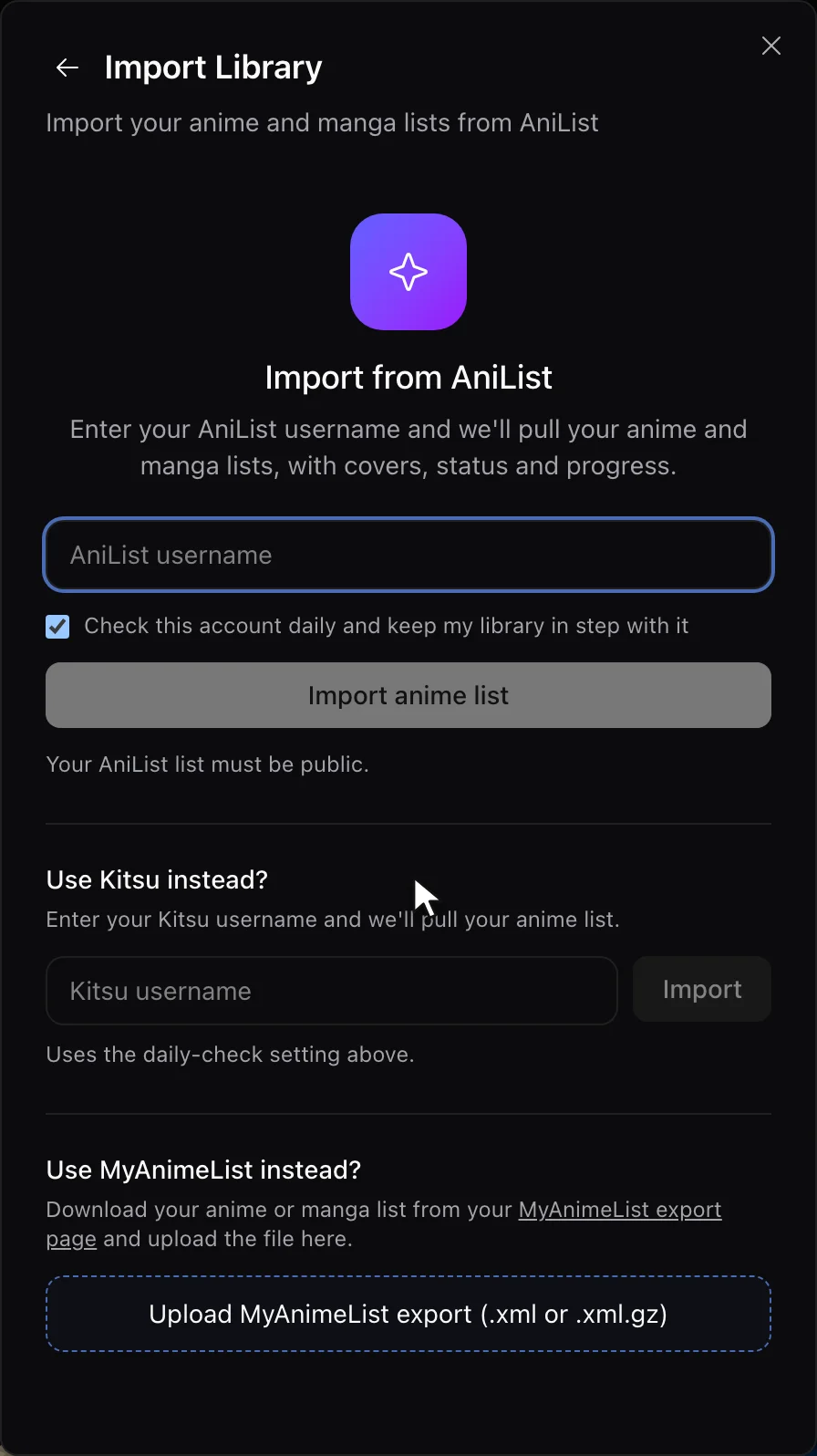
If the import says it can’t find the user, check the spelling and that the list is public. If it says AniList is unavailable, that’s AniList being down, and trying again a little later works.
What you get back
| What you get | Detail |
|---|---|
| Library export | CSV files, one per medium, manga included |
| Anime export | A MAL/AniList-format XML file |
| Per anime row | Status, your rating, notes, episodes watched, start and finish dates, cover, and the AniList and MyAnimeList IDs |
| Per manga row | Read status, your rating, notes, chapters and volumes read, dates, cover, and the same IDs |
| Opens in | Any spreadsheet app, or another tracker’s importer |
The CSV opens in a spreadsheet and shows exactly what you have logged. The XML is the file MyAnimeList and AniList read, so it moves your anime list to either one. It only carries anime that Achriom could match to a MyAnimeList entry, so a title with no MAL match stays in the CSV and not in the XML.
Where to take the file
Keep it in Achriom
Most people who export an AniList list want two things: a copy they own, and a library that doesn’t depend on one site. Once the import runs, your anime and manga sit beside your films, shows, books and albums, and ten items in, Achriom builds your Taste Portrait. The librarian can answer questions across all of it, such as which of your five-star anime share a mood with the novels you rated highest. Free accounts import and export without an item limit. If you’re comparing options, Best AniList Alternatives in 2026 goes through them.
Keep your anime, and add the rest. One username brings the list over.
Bring my AniList over →Back it up as a file
Even if you plan to stay on AniList, a copy you hold yourself is worth having. Save the CSV with your other backups and export again after a big stretch of watching.
Move to MyAnimeList or another tracker
The anime XML is in the format MyAnimeList’s own importer reads. If you’re weighing MAL against AniList first, AniList vs MyAnimeList in 2026 lays out the differences, and AniList vs Kitsu covers the other direction. Going the opposite way, our MyAnimeList export guide shows the file you’d bring to AniList.
What doesn’t come out
A list export carries your entries, scores, progress and notes. Your AniList social side stays behind: followers, activity feed posts, reviews written on AniList’s own pages or its recommendations. If you wrote reviews you care about, copy them out by hand first.
A private list can’t be imported by username at all, because the import reads the public list. Make it public while you import, then set it back.
Finally, check the result before you trust it. Pick a series you finished years ago, such as Akira, and one you’re partway through, such as Frieren: Beyond Journey’s End, and confirm the score and episode count match what AniList shows.


If you track more than anime
AniList is built for anime and manga. If your films, shows, books and albums live somewhere else, Achriom keeps them all in one library, and How to Track Anime in 2026 covers where it fits next to the anime specialists. Best Anime Tracking Apps in 2026 compares the established ones.
Related guides:
- Best AniList Alternatives in 2026
- AniList vs MyAnimeList in 2026
- How to Export Your MyAnimeList Data
Common questions
Does AniList have an export button?
Not for your list as a file, as far as we can tell. Reviewers on AlternativeTo say there is no list export. AniList does have an account data download as JSON, and its API can be read by script, but neither is a ready list file.
How do I export my AniList list for free?
Import it into Achriom by username (the list has to be public), then open Settings and use Export Library for CSV files or Export Anime for MAL / AniList for XML. Achriom is free with no item limit.
Does the export include manga?
Yes. Achriom imports your manga list from AniList along with your anime, and the library export includes a manga CSV.
Can I move my AniList list to MyAnimeList?
Yes. Achriom’s Export Anime for MAL / AniList gives you an XML file in the format MyAnimeList’s importer reads. It only carries anime Achriom could match to a MyAnimeList entry.
Bring your shelf over
Start your library