How to Export Your Kitsu Anime List (2026)
How to get your Kitsu anime list out as a file, through Kitsu's own Export section in settings, a community backup tool, and Achriom's free CSV and MAL XML export.
Some links below are affiliate links. As an Amazon Associate, Achriom earns from qualifying purchases. For books we prefer Bookshop.org, which supports independent bookstores.
Kitsu’s settings have an Export section, with a Download Anime Library button and a sync to MyAnimeList. The quickest way to get a CSV or a MyAnimeList-format XML file is to import your list into Achriom by username and export from there. Achriom reads your list from Kitsu’s public API, so there is no file to request first, and the export is free with no item limit.
Your Kitsu username is all it needs. Type it in, and your anime list comes over with status, rating and episodes watched.
Import my Kitsu list →Last verified: November 12, 2026, against Achriom’s import dialog and export settings, Kitsu’s open-source web app and the backup tool’s README.
Does Kitsu have an export button?
Kitsu’s settings include an Export section with a Download Anime Library option and a sync to MyAnimeList. For a CSV or a MyAnimeList-format XML file, import your list into Achriom by username and export from Settings.
The Export section shows up in Kitsu’s web app source (kitsu-web on GitHub) as the labels “Download {kind} Library”, for anime and manga, and “Setup Export to MyAnimeList Account”. The second one is described as automatically syncing your library updates from Kitsu to MyAnimeList, so it keeps a MyAnimeList list current but doesn’t give you a file. The settings pages sit behind your login, so open Settings while signed in to Kitsu and look for Export. Kitsu’s code doesn’t say what file the download is, so open it before you trust it.
The animeManga-autoBackup README independently lists Kitsu as a site it can back up as .xml or .json, and says only the .xml can be imported into MyAnimeList or another service. That’s the format to want if the list is going to another tracker.
Community backup tools
animeManga-autoBackup is a PowerShell script that needs PowerShell 7 or higher and a public library. For Kitsu it asks you to put your Kitsu email and password in its configuration, so read what a script does before you give it a login. Its README also says it is being replaced by a Python rewrite called bokusu, which was still in development when the notice was written. It produces a file once, so you run it again for a fresh copy. Nekomata, a Windows converter from Kitsu to MyAnimeList XML, is marked discontinued on its GitHub page.
The no-code route: Achriom
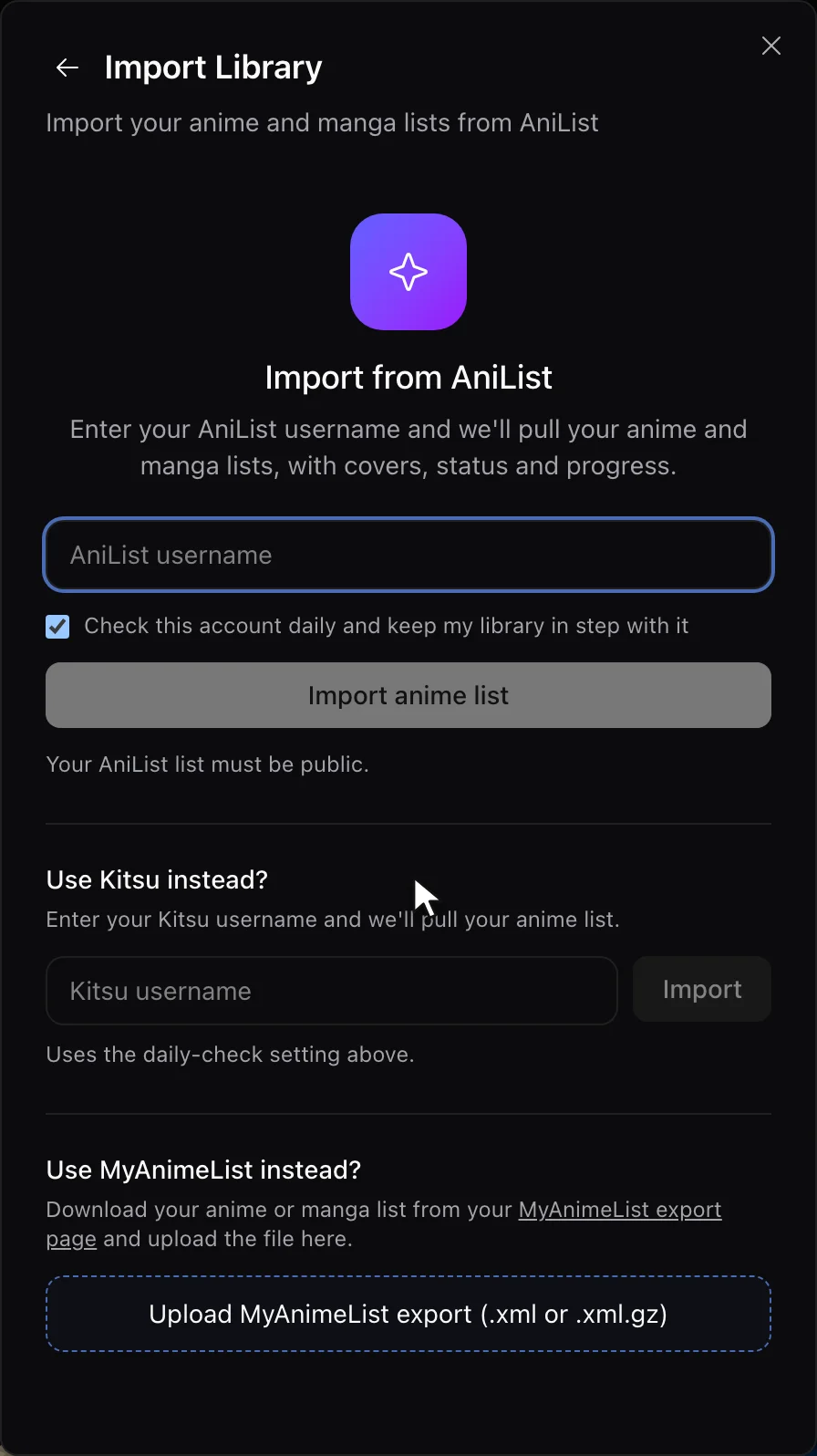
- Sign in at achriom.com (free) and open the import dialog.
- Find Use Kitsu instead? on the anime import step. It reads “Enter your Kitsu username and we’ll pull your anime list.”
- Type your Kitsu username and click Import.
- Leave “Check this account daily and keep my library in step with it” ticked if you’re still logging on Kitsu, or untick it for a one-off copy.
- Open Settings and use Export Library for the CSVs, or Export Anime for MAL / AniList for the XML.
Each Kitsu entry comes over with its status (Kitsu’s current becomes watching, planned becomes plan to watch, and completed, on hold and dropped stay as they are), your rating and the number of episodes you’ve watched. Kitsu’s ratings run on a 0 to 20 scale internally, and Achriom converts them to its own. Importing by username also means you don’t need the Export button, and it works for anyone whose list is public.
If the import says it can’t find a Kitsu user by that name, check the spelling. If it says it found no anime, the list is empty or isn’t visible to Achriom.
What you get back
| What you get | Detail |
|---|---|
| Library export | CSV files, one per medium |
| Anime export | A MAL/AniList-format XML file |
| Per anime row | Status, your rating, notes, episodes watched, start and finish dates, cover, and the AniList and MyAnimeList IDs |
| Opens in | Any spreadsheet app, or another tracker’s importer |
The CSV opens in a spreadsheet and shows exactly what you’ve logged. The XML is MyAnimeList’s export format, the one AniList’s import page and Simkl’s MAL importer are built around. It only carries anime that Achriom could match to a MyAnimeList entry, so a title with no match stays in the CSV and not in the XML.
Where to take the file
Keep it in Achriom
Most people who pull a Kitsu list out want a copy they own and a library that doesn’t hinge on one site. After the import, your anime sit beside your films, shows, books and albums, and ten items in, Achriom builds your Taste Portrait. The librarian can answer questions across all of it, for example which of your five-star anime share a mood with the novels you rated highest. If you’re weighing options first, Best Kitsu Alternatives in 2026 goes through them.
Keep your anime, and add the rest. One username brings the list over.
Bring my Kitsu list over →Back it up as a file
Even if you’re staying on Kitsu, a copy you hold yourself is worth having. Save the CSV with your other backups and export again after a big stretch of watching.
Move to MyAnimeList or AniList
The anime XML is in MyAnimeList’s export format. If you’re choosing between the two, AniList vs MyAnimeList in 2026 lays out the differences, and Best MyAnimeList Alternatives in 2026 covers the wider field. Going the opposite direction, our AniList export guide and MyAnimeList export guide show how to get those lists out.
What doesn’t come out
Achriom imports the anime on your Kitsu account and nothing else, so Kitsu manga is not part of it. A list export also carries your entries, ratings and progress, not the social side of Kitsu such as followers, posts and reviews. If you wrote reviews you care about, copy them out by hand first.
Check the result before you trust it. Pick a series you finished years ago, such as Mushishi, and one you’re partway through, such as Frieren: Beyond Journey’s End, and confirm the rating and episode count match what Kitsu shows. Akira is a good third check, since it’s a film and not a series.



If you track more than anime
Kitsu is built for anime and manga. If your films, shows, books and albums live somewhere else, Achriom keeps them all in one library, and AniList vs Kitsu covers how the two anime specialists differ. Best Anime Tracking Apps in 2026 compares the established ones.
Related guides:
Common questions
Does Kitsu have an export button?
Kitsu’s settings include an Export section with a Download Anime Library option and a sync to MyAnimeList. For a CSV or a MyAnimeList-format XML file, import your list into Achriom by username and export from Settings.
How do I export my Kitsu list for free?
Import it into Achriom by username, then open Settings and use Export Library for CSV files or Export Anime for MAL / AniList for XML. Achriom is free with no item limit.
Does the export include manga?
No. Achriom imports the anime on your Kitsu account and nothing else, so Kitsu manga is not part of it.
Can I move my Kitsu list to MyAnimeList?
Yes. Achriom’s Export Anime for MAL / AniList gives you an XML file in MyAnimeList’s export format. It only carries anime that Achriom could match to a MyAnimeList entry, so a title with no match stays in the CSV and not in the XML.
Bring your shelf over
Start your library