How to Export Your Goodreads Library (2026 Guide)
Step-by-step guide to exporting your Goodreads library as a CSV in 2026: where the button is, what the file includes, what gets left behind, and where to import it next.

Some links below are affiliate links. As an Amazon Associate, Achriom earns from qualifying purchases. For books we prefer Bookshop.org, which supports independent bookstores.
To export your Goodreads library: sign in on a desktop browser, go to My Books, click “Import and Export” in the left sidebar under Tools, then click the “Export Library” button. Goodreads generates a CSV file of your entire library. A download link appears on the same page, usually within a minute or two. That file contains every book you have shelved, your ratings, your reviews, and your reading dates.
That is the whole procedure. The rest of this guide covers what the file actually contains, what Goodreads quietly leaves out, the snags that stop people (the export is desktop-only, and big libraries take a while), and where to take the file once you have it.
One thing before anything else: if you are leaving Goodreads, export first and delete last. The export button only works while your account exists.
What the export includes, and what it leaves behind
The Goodreads export is a single CSV file, one row per book. Open it in any spreadsheet and you will find these columns filled in:
- Title, Author, ISBN, and ISBN13: the identifiers other apps use to match your books
- My Rating: your star rating, 0 through 5
- My Review: the full text of every review you wrote
- Private Notes: notes only you could see
- Bookshelves and Exclusive Shelf: your custom shelves, plus whether each book is read, currently-reading, or to-read
- Date Read and Date Added: when you finished it and when you shelved it
- Read Count: how many times you logged it as read
That covers most of what people worry about losing. Now the gaps, because there are real ones:
- Kindle highlights and notes are absent. They belong to Amazon’s reading system, and they never touch Goodreads’ export. Find them at read.amazon.com/notebook and copy them out separately.
- Reread dates collapse. If you read Project Hail Mary three times, the CSV shows Read Count 3 but only one Date Read. Your reread history survives as a number, without the dates.
- Social history stays behind. Friends, followers, comments on your reviews, likes, and group posts are all tied to the account, and none of it exports.
- Reading challenges are gone too. Your 2019 goal of 40 books and whether you hit it lives only on Goodreads.

For most readers the CSV holds everything that matters: the books, the ratings, the reviews, the dates. The rest is context you may not miss until it is gone, so decide now whether any of it is worth screenshotting.
The export, step by step
-
Open goodreads.com in a desktop browser and sign in. The mobile app has no export feature at all. On a phone, request the desktop site from your browser menu; the page works, it is just cramped.
-
Click “My Books” in the top navigation.
-
Find “Import and Export” in the left sidebar, under the Tools heading. You can also go directly to goodreads.com/review/import.
-
Click the “Export Library” button. Goodreads starts building your file. Nothing dramatic happens on screen, which confuses people. The page is working.
-
Wait for the link, then download. A line reading “Your export from [today’s date]” appears below the button. Click it and the CSV downloads. A few hundred books usually takes under a minute. Libraries in the thousands can take several minutes, and you may need to refresh the page to see the link appear.
If the link never shows up: refresh after five minutes. If it still has not appeared, log out, log back in, and click Export Library again. The generator does occasionally stall on very large libraries, and a second request usually goes through. There is no export API anymore (Amazon shut down Goodreads API access in 2020), so the button is the only door.
Check the file before you trust it
Open the CSV in Google Sheets, Excel, or Numbers before you consider the job done. Three checks worth thirty seconds:
Count the rows. The row count (minus the header) should match your Goodreads book count across all shelves. If you have 412 books shelved and 409 rows, something got skipped, and a fresh export usually fixes it.
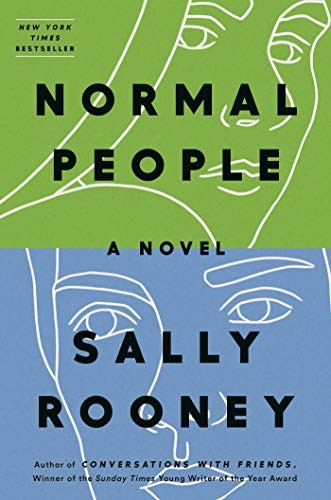
Spot-check a review. Find a book you wrote a real review for, something like Normal People or Piranesi, and confirm the My Review column carries the full text. Long reviews sometimes look truncated in a spreadsheet cell preview; click into the cell to see the whole thing.

Check the Exclusive Shelf column. This is the column import tools use to sort your library into read, currently reading, and want-to-read. If it looks right here, your shelves will land correctly wherever you go next.
Then store a copy somewhere that is not your Downloads folder. This file is your reading history in portable form; treat it like a backup, because that is what it is.
Where to take your Goodreads export
The CSV is a standard format and every serious Goodreads alternative accepts it. Four destinations cover most readers.
The StoryGraph
The most common landing spot for the Goodreads exodus. StoryGraph accepts the Goodreads CSV directly from its import page and rebuilds your shelves, ratings, and reading dates. Its strength is stats: mood breakdowns, pacing charts, and reading trends Goodreads never offered. Imports run through a queue, so a large library can take a while to fully process. Free, with a Plus tier at $4.99/month for deeper stats. Book-only. We compare it head-to-head in StoryGraph vs Goodreads.
Hardcover
A newer alternative built by readers after the API shutdown, with a cleaner design than either Goodreads or StoryGraph. It imports the Goodreads CSV, matches editions reasonably well, and has an active community without the clutter. Free with an optional supporter plan. Also book-only.
LibraryThing
The cataloger’s option, older than Goodreads itself. LibraryThing imports the CSV and shines if you care about editions, physical copies, and precise metadata; it is closer to a personal card catalog than a social network. Free since 2020. If your library is a collection you curate rather than a feed you scroll, it belongs on your shortlist. Our guide to organizing your book collection goes deeper on that mindset.
Achriom
Achriom imports your Goodreads CSV into a library that also holds your films, TV shows, albums, anime, and games. Your shelves, ratings, and reviews come through, and then an AI librarian can actually read across the collection: what your five-star novels share, which films rhyme with your favorite authors, what to pick up next based on everything you track rather than books alone. Private by default, with no followers and no feed. Free to start, with Pro at $9.99/month for heavier AI use. The upload itself takes a couple of clicks, and we wrote a separate walkthrough: how to import your Goodreads library.
You are about to rebuild your library somewhere. Worth doing once instead of once per format. Every book-only app on this list can hold your Goodreads history, and in two years your films and albums will still be scattered across other trackers. Achriom is one library for books, films, TV, albums, and anime, with an AI librarian that connects them, and a full export back out whenever you want it. Free to start, no card.
Import your Goodreads CSV →Quick comparison
| App | Goodreads CSV import | Scope | Social | AI features | Price |
|---|---|---|---|---|---|
| The StoryGraph | Yes | Books | Some | Stats, mood matching | Free / $4.99 mo |
| Hardcover | Yes | Books | Yes | Light recommendations | Free / supporter plan |
| LibraryThing | Yes | Books | Forums | No | Free |
| Achriom | Yes | Books, films, TV, albums, anime, games | Private | Yes (AI librarian) | Free / $9.99 mo |
Which should you use?
Use The StoryGraph if: you want the closest thing to Goodreads with better stats, and books are the only thing you track. It is the safest like-for-like swap.
Use Hardcover if: you want a modern, uncluttered book community and you are happy to grow with a smaller platform.
Use LibraryThing if: you think in editions and collections. It rewards care with metadata in a way no social reading app does.
Use Achriom if: books are one part of what you track. If your reading sits next to a Letterboxd habit and a shelf of albums, importing everything into one library means this is the last migration you run. The best Goodreads alternatives breakdown covers exactly what changes.
Nothing stops you from importing the same CSV into two of them. The file does not expire, and trying StoryGraph and Achriom side by side for a week costs nothing.
If you are deleting your Goodreads account
The order of operations matters, because deletion is permanent and Goodreads support cannot restore a deleted library.
- Export your CSV and confirm it opens with your books, ratings, and reviews inside.
- Save your Kindle highlights separately from read.amazon.com/notebook if you use a Kindle.
- Screenshot anything social you want to remember: challenge history, long comment threads, your profile.
- Import the CSV into your new app and check that your shelves landed correctly.
- Only then delete the account, from Settings under Account Settings.
There is no rush on step five. A dormant Goodreads account costs nothing, and plenty of people keep theirs as a fallback for a few months while the new library beds in.
The honest answer
Exporting from Goodreads takes about two minutes and the file is genuinely complete where it counts: every book, rating, review, shelf, and date comes with you. The real losses are Kindle highlights (stored separately at Amazon), individual reread dates, and your social history, so capture those before you close anything.
Where to go next depends on scope. StoryGraph, Hardcover, and LibraryThing are all worthy book-only homes. Achriom is the option if you want your reading history to live alongside your films, TV, and music, understood as one taste instead of four separate apps. Whichever you choose, the CSV in your hands is the point: your reading history is portable now, and any app that will not give it back the same way is a place you are renting. We hold ourselves to that standard too; the Letterboxd export guide exists for the same reason.
Common questions
How long does a Goodreads export take?
A few hundred books usually generates in under a minute. Libraries in the thousands can take several minutes, and the page will not always update on its own, so refresh if the download link has not appeared. If nothing shows after five minutes, log out and request the export again.
Does the export include books on my to-read shelf?
Yes. The CSV covers every shelf, and the Exclusive Shelf column marks each book as read, currently-reading, or to-read. Import tools use that column to rebuild your shelves, so your to-read pile arrives intact.
Why is there no Export Library button on my page?
You are almost certainly on the mobile site or in the app, where the feature does not exist. Open goodreads.com on a computer, or request the desktop site in your phone’s browser, and go to goodreads.com/review/import while signed in.
Can I export just one shelf?
Not through the export tool; it is all or nothing. The practical route is to export everything and filter the CSV afterward. Sort the Bookshelves or Exclusive Shelf column in a spreadsheet and delete the rows you do not want before importing elsewhere.
Will my reviews transfer to a new app?
The review text travels in the CSV, and what happens next depends on the destination. StoryGraph, Hardcover, and Achriom all bring reviews in with the matched book. Matching failures happen mostly with obscure editions missing an ISBN, so spot-check a few after any import.
Does Goodreads still have an API I can use instead?
No. Amazon stopped issuing Goodreads API keys in 2020 and retired existing ones, which is why third-party tools that once synced with Goodreads no longer work. The CSV export is the only supported way to get your data out.