How to Move from Goodreads to StoryGraph (2026 Guide)
Step-by-step guide to moving your Goodreads library to StoryGraph: export your CSV, import it, see what transfers, and fix the editions that come across wrong.
Some links below are affiliate links. As an Amazon Associate, Achriom earns from qualifying purchases. For books we prefer Bookshop.org, which supports independent bookstores.
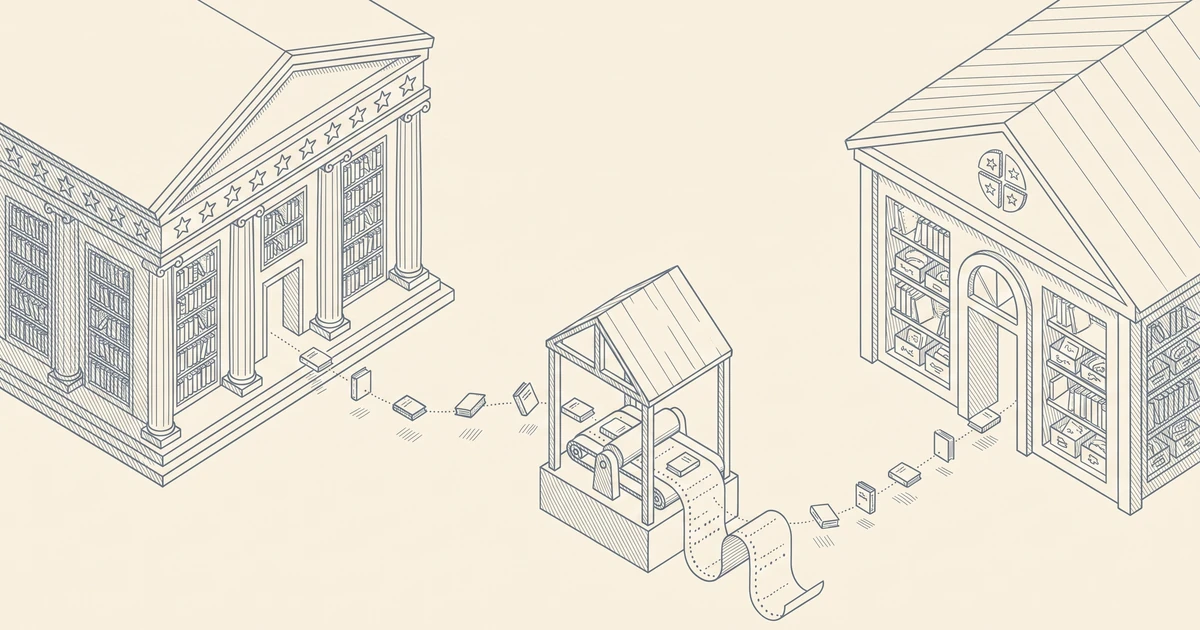
Moving from Goodreads to StoryGraph takes about fifteen minutes of work and, for large libraries, a few hours of waiting. Export your library as a CSV from the Goodreads desktop site, upload it to StoryGraph’s import page, and let the queue process it. Your books, shelves, ratings, reviews, and read dates come across. Your friends, groups, and Kindle notes do not.
This guide covers the transfer itself: where the export button hides, what the import preserves, and how to fix the handful of books that come across on the wrong edition. If you are still deciding whether to switch at all, the StoryGraph vs Goodreads breakdown compares the apps feature by feature.
What transfers (and what does not)
Set expectations before you start. The Goodreads CSV carries your reading data, and StoryGraph reads most of it cleanly.
| Data | Transfers? | Notes |
|---|---|---|
| Books and reading statuses | Yes | Read, currently reading, and want to read map directly |
| Star ratings | Yes | Arrive as whole stars; refine to quarter stars afterward |
| Reviews | Yes | Full review text comes across |
| Read dates | Yes | Blank dates stay blank |
| Custom shelves | Partly | They become tags on StoryGraph |
| Friends and groups | No | Social graphs never transfer between apps |
| Kindle highlights and notes | No | Those live in Amazon’s ecosystem, tied to Goodreads |
| Reading challenge history | No | StoryGraph has its own goals, starting fresh |
The losses are real but contained. Everything that describes your reading survives the move. Everything that describes your Goodreads account does not.
Step 1: Export your library from Goodreads
The export lives on the desktop website. The Goodreads mobile apps do not offer it, so use a computer, or request the desktop site from your phone’s browser.
- Sign in at goodreads.com and open My Books.
- In the left sidebar, under Tools, click Import and export.
- Click Export Library.
- Wait for the link reading “Your export from” followed by the date. Small libraries take seconds; a few thousand books can take several minutes. Refresh if needed.
- Download the file. It arrives as
goodreads_library_export.csv.
Open it once before moving on. If the file is empty or missing recent books, run the export again. A bad export is easier to catch now than after the import.
Step 2: Upload your CSV to The StoryGraph
If you are creating your StoryGraph account fresh, the signup flow asks whether you want to import from Goodreads and walks you straight into the upload. If your account already exists, open your profile menu, choose Manage Account, and find the Goodreads import section.
Upload the CSV and confirm. StoryGraph processes imports in a queue rather than instantly, so a small library often finishes in minutes while a big one can sit for a few hours, longer during rush periods like early January. You get an email when it completes. Close the tab and go read something.
Step 3: Check the import
When the email arrives, spot-check three things.
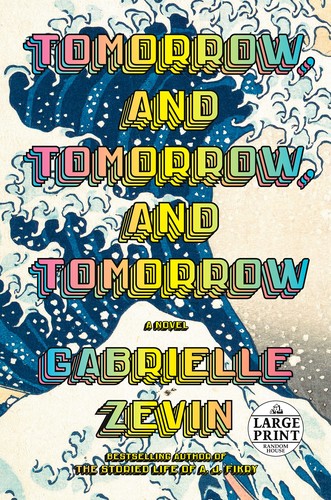
Editions. StoryGraph matches books by ISBN, and most land on the right edition. The usual suspects for mismatches are audiobooks and some ebook editions, which often lack an ISBN in the Goodreads export. If your audiobook of Tomorrow, and Tomorrow, and Tomorrow arrives as a mass-market paperback, open the book page and switch the edition. StoryGraph flags books it could not match at all so you can add them by hand.
Ratings. Goodreads only ever allowed whole stars, so your ratings arrive exactly as you left them. StoryGraph supports half and quarter stars, which means the four stars you gave Piranesi can finally become the 4.25 you always meant. Worth an evening’s pass through your favorites.

Tags. Your custom shelves are now tags. They filter well, but shelves you used as statuses (like “dnf” or “on-hold”) may deserve conversion to StoryGraph’s built-in equivalents, which it tracks natively.
Step 4: Decide what happens to your Goodreads account
Nothing forces the issue. A dormant Goodreads account costs nothing and preserves your public review history and any links you have shared over the years. Some readers keep it for giveaways and groups while logging their actual reading on StoryGraph.
Know that there is no sync in either direction. Whatever you log on one app after the move exists only there. If you keep both, you can re-import a fresh Goodreads CSV into StoryGraph periodically; it skips books it already imported rather than duplicating them.
If you want a clean break, wait until you have verified the import, download one final export as a backup, and then delete the account from Goodreads settings.
What StoryGraph gives you
The move pays off quickly. StoryGraph’s stats are the headline: mood and pace breakdowns, page counts over time, genre mixes, all rendered from the same reading history Goodreads mostly left as a flat list. Quarter-star ratings fix a decade-old complaint. The recommendations lean on how books feel rather than what they sold next to, and the whole thing runs independent of Amazon, which for many leavers is the point.
The free tier covers everything in this guide. Plus, at $4.99/month, adds deeper stats and comparison features, and nothing about the migration requires it.
Achriom: if books are one shelf among several
StoryGraph solves book tracking. It does not touch the rest of your library. If your films live in one app, your shows in another, and your albums nowhere at all, moving your books is the first migration of several, and each one lands your taste in another silo.
Achriom accepts the same goodreads_library_export.csv you just downloaded, so one export can seed it alongside StoryGraph. The difference is scope: your books sit in one library with your films, TV, albums, anime, and games, and an AI librarian reads across all of it. It can tell you what your five-star novels share with the films you rewatch, or what to pick up next based on the whole shelf rather than one format’s slice. The walkthrough is in how to import your Goodreads library.
Moving your books is the first migration, and on single-format apps it will not be the last. The same Goodreads CSV imports straight into Achriom: one library for your books, films, shows, albums, and anime, with an AI librarian that connects them, and a full export back out any time. Free to start, no card.
Consolidate once →Quick comparison
| Goodreads | The StoryGraph | Achriom | |
|---|---|---|---|
| Scope | Books | Books | Books, films, TV, albums, anime, games |
| Ratings | Whole stars | Quarter stars | Half stars |
| Stats | Year in Books, basic | Moods, pace, monthly graphs | Taste patterns across media |
| Ownership | Amazon | Independent | Independent |
| AI features | None | Mood-based recommendations | AI librarian you can talk to |
| Export | CSV | CSV | Full export, any time |
| Price | Free | Free; Plus $4.99/mo | Free; Pro $9.99/mo |
Which should you use?
Move to StoryGraph if: books are your medium, you want real stats and finer ratings, and you would rather not have Amazon holding your reading history. This is the mainstream Goodreads exit, and it is a good one.
Stay on Goodreads if: the community is the product for you. Groups, giveaways, and a decade of review threads do not transfer anywhere, and if those are what you open the app for, no migration improves your week.
Use Achriom if: books are one shelf among several and you want the patterns across all of them in one place. It works alongside StoryGraph too, since both import from the same CSV.
The honest answer
For a books-only reader leaving Goodreads, StoryGraph is the right destination, and the move is one afternoon: export, upload, wait for the email, fix a few editions. The data that matters survives. The data that does not transfer mostly belongs to Goodreads rather than to your reading.
If you track more than books, consider consolidating once instead of migrating format by format. The export you made in Step 1 works in Achriom as-is, and guides like how to organize your book collection cover what to do once everything is in one place.
Common questions
Does StoryGraph import my Goodreads ratings and reviews?
Yes. Ratings, reviews, read dates, and shelves all come across from the CSV. Ratings arrive as whole stars because that is all Goodreads ever recorded; you can refine them to half or quarter stars once you are in.
How long does the StoryGraph import take?
The Goodreads export takes minutes at most. StoryGraph’s import queue usually clears small libraries in minutes and large ones in a few hours, with an email when yours is done. Early January, when resolution-season migrations spike, tends to run slower.
What happens to my Goodreads custom shelves?
The three core shelves become StoryGraph reading statuses. Everything else becomes tags on the imported books, which filter well but behave differently from shelves. Plan a few minutes of tidying, especially for shelves you used as statuses.
Can I use both Goodreads and StoryGraph at the same time?
You can, with the caveat that nothing syncs. Each read has to be logged twice, or you accept that one app is the record and the other is the community. Periodic re-imports of a fresh Goodreads CSV keep StoryGraph current without creating duplicates.
Should I delete my Goodreads account after moving?
There is no deadline. A dormant account preserves your review history and costs nothing. Verify the import first, keep a final CSV export as a backup, and delete only if you want the clean break.
Can I import the same Goodreads export into Achriom?
Yes, the same file works. Achriom places your books in one library with your films, TV, albums, anime, and games, and its AI librarian finds the threads between them. Your data exports back out whenever you want it.